
Quick install on any platform
Install the e-commerce chatbot via WordPress, Shopify, or OpenCart plugins — or one line of code for custom sites. Within minutes, live website chat appears on your store and connects to the Wsali dashboard.
Install an AI-powered e-commerce chatbot on your store: it greets visitors, recommends products, helps complete purchases in chat, and tracks who is browsing now. A live website chat system for WordPress, Shopify, OpenCart, or custom code — with a unified inbox alongside WhatsApp.

Not a disposable message box — a live website chat system that sells, supports, and captures data inside your store
Install the e-commerce chatbot via WordPress, Shopify, or OpenCart plugins — or one line of code for custom sites. Within minutes, live website chat appears on your store and connects to the Wsali dashboard.
The e-commerce chatbot understands your products, prices, and shipping/return policies — replies around the clock, recommends items, moves purchases closer inside chat, and hands off to an agent when the customer needs a human touch.
With live website chat you see who is browsing now: page, country, and IP — and start a conversation before the visitor closes the tab and leaves for a competitor.
Colors, fonts, button position, welcome message, and auto-open — tune live website chat from the dashboard without a developer so it feels part of your store design.
E-commerce chatbot conversations land in the same inbox as WhatsApp and other channels — with team routing and customer data captured in one place.
Product cards, budget-based recommendations, add-to-cart from chat, and a sales-rep banner on the product page — what separates a serious e-commerce chatbot from generic chat with no sales path.
Install on any platform
Practical store language: turn a hesitant visitor into a chat, then an order — without long contact forms
A visitor entering your online store is not looking for a long contact form; they want an answer now. That is where an e-commerce chatbot helps: it answers common questions, shows the right product, and moves the purchase decision closer before the tab closes. Wsali builds this as a live website chat system connected to one inbox with WhatsApp and other channels — not an isolated widget whose chat ends in a vacuum.
Many stores install a chat tool then discover it is only a message box with no sales path. The difference with an e-commerce chatbot trained on your catalog and policies is that the conversation becomes an operating flow: recommend, add to cart, escalate to an agent, then a customer record you can use later. A live website chat system in this sense cuts manual reply hours without removing the human touch when it matters.
Whether your store runs on WordPress, Shopify, OpenCart, or custom code, the goal stays the same: turn a visit into a chat, and a chat into an order. Start with an honest welcome, set auto-open wisely, and watch which pages generate the most conversations. That is how an e-commerce chatbot becomes a revenue channel instead of a pretty button, while live website chat stays part of your brand and site speed.
If you measure ad cost today without measuring reply quality on the site, you see only half the picture. An e-commerce chatbot closes the post-click gap, and live website chat gives clear proof: a conversation started, a question answered, and an order completed or handed to an agent at the right time.
Because most objections happen while browsing: size, shipping, availability, payment. An e-commerce chatbot catches that moment on the page itself, raising completion odds and cutting abandoned carts lost after minutes of hesitation.
A live system does more than move text; it shows product cards, auto-opens with a pull message, tracks live visitors, and links chats to a unified inbox. That is a live website chat system designed for sales — not support alone.
It covers repeated questions day and night, and routes complex or high-value cases to an agent with page and product context. Result: less time on repeats, more time closing — the core of a mature e-commerce chatbot.
Most Saudi store visits come from mobile. So a live website chat system tunes button size, margins, and safe-area — without covering buy buttons or slowing the page — keeping chat one thumb away.
You can combine site chat and WhatsApp in one floating button, or move interested shoppers from browser to WhatsApp with a product-page banner. The e-commerce chatbot and WhatsApp work in one inbox instead of scattering the team across tools.
Watch chat volume, chat-to-order conversion, and top engaging pages. When you see where dialogue starts and stalls, you improve wording and recommendations — turning live website chat into a weekly improvement tool, not just a messaging channel.
Six steps every visitor goes through when interacting with your site chat
The e-commerce chatbot button appears — or live website chat auto-opens after a few seconds with a welcome that attracts attention without annoyance.
An e-commerce chatbot trained on your store content answers questions, shows interactive products, and asks about budget or need inside live website chat.
The customer picks a product and adds to cart or completes the order from the e-commerce chatbot window — without leaving live website chat.
Every live website chat conversation is saved as a lead — name, email, phone, interests — to fuel later campaigns alongside the e-commerce chatbot.
If the customer asks for a human or the e-commerce chatbot hits its limits — live website chat routes the conversation to the right agent with context.
Track e-commerce chatbot performance: chat volume, conversion, and top pages — to improve live website chat weekly.
The same Wsali smart bot we described earlier — works on website chat as it does on WhatsApp
Like the Wsali smart bot: the platform crawls your site content (products, pages, FAQ) and stores it in a knowledge base. Add custom instructions, reply rules, and tone of voice — and the bot becomes an expert on your store.
Enable "Allow smart bot to auto-reply" on the website chat channel — it answers questions, shows interactive lists and product cards, and displays quick replies for agents during manual takeover.
Website chat conversations reach one inbox with other channels. Assign to a specific agent or distribute automatically (Round Robin) — with instant notifications and no lost messages.
Every visitor who chats is logged as a lead — with conversation history, pages visited, and visit source. Use the data for marketing campaigns and abandoned cart recovery.
Every screenshot from the actual dashboard — detailed walkthrough of installation, customization, auto-open, AI connection, and real-time visitor tracking.
Live website chat system with your store branding
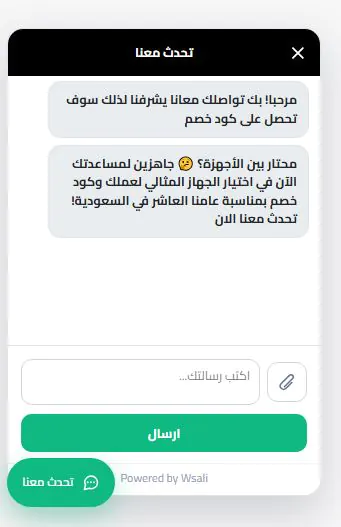
This is what store visitors see after activating the e-commerce chatbot: a floating “Talk to us” button, an elegant chat window, welcome messages offering a discount or product help, plus a composer, attachments, and a clear send button. Every detail is editable from the dashboard so live website chat feels like a natural extension of your brand — not a bolted-on widget.
This is what store visitors see after activating the e-commerce chatbot: a floating “Talk to us” button, an elegant chat window, welcome messages offering a discount or product help, plus a composer, attachments, and a clear send button. Every detail is editable from the dashboard so live website chat feels like a natural extension of your brand — not a bolted-on widget.
شات بوت للمتاجر الإلكترونية — نظام دردشة مباشر للمواقع جاهز في دقائق
لا تحتاج مطوراً لتفعيل شات بوت للمتاجر الإلكترونية. حمّل الإضافة أو انسخ الكود، أدخل مفتاح الشات، ويظهر نظام دردشة مباشر للمواقع على متجرك فوراً.
From Wsali dashboard, download the WordPress plugin in one of two versions: the standard version loads the script from the platform directly — any update reaches all sites automatically. The local version bundles the script inside the plugin — ideal for page speed and Core Web Vitals analytics. Install via: Dashboard → Plugins → Upload plugin → Activate.
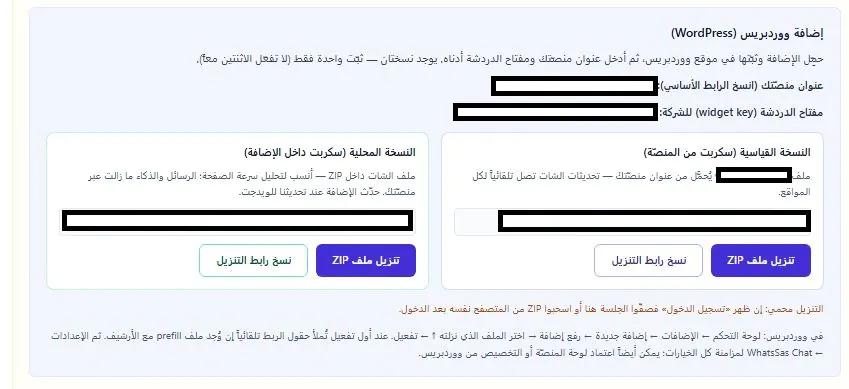
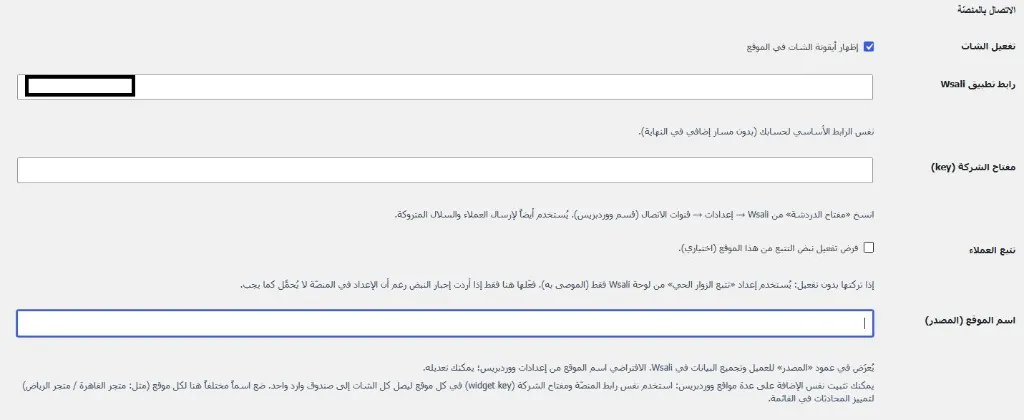
After installing the plugin, enter the Wsali app URL (your account base URL) and chat key from: Wsali settings → Communication channels → WordPress section. The same key is used for customer and abandoned cart tracking. You can use the same plugin on multiple sites with different names — and all conversations reach one inbox.
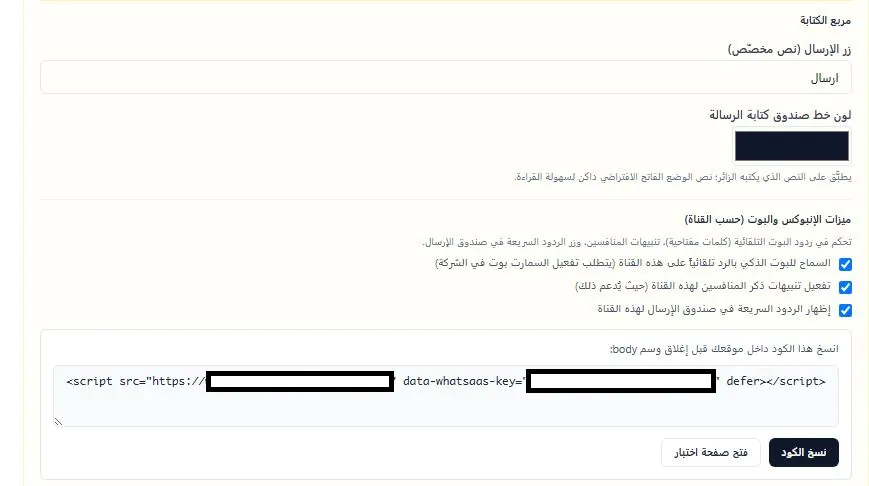
If your site is built with a custom language or framework — copy the script line from the Wsali dashboard and paste it before the closing body tag. From the same screen, enable "Allow smart bot to auto-reply", competitor mention alerts, and quick replies. The script loads with defer so it does not affect site speed. The "Open test page" button lets you verify the widget before going live.
From WordPress or platform settings, enable communication channels in the floating icon: website chat (Wsali) with auto-open support, and WhatsApp with mobile number and country code. Visitors see one button combining all channels — professional experience without button clutter.
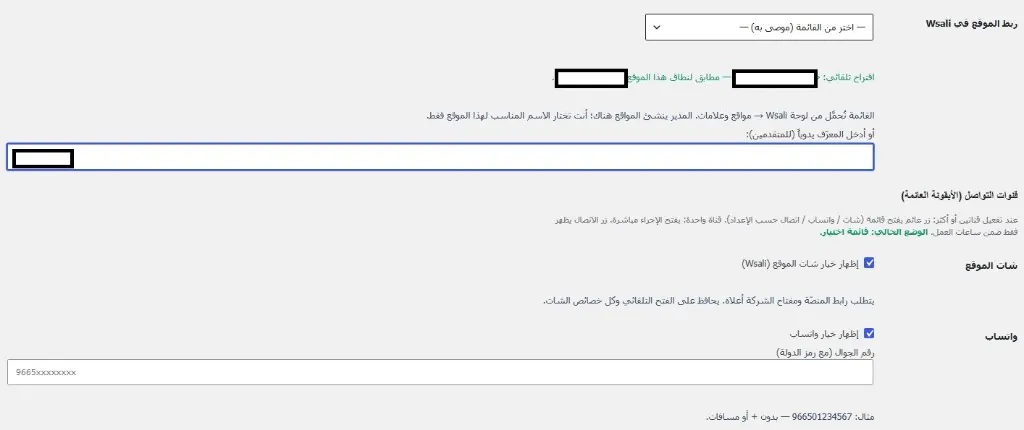
From Wsali dashboard — full control over widget behavior
After connecting, open "Website chat" settings in the Wsali dashboard: enable the service, configure live visitor tracking, session duration, button and window colors, and welcome message — everything from one place.
In channel settings, enable "Allow smart bot to auto-reply on this channel" — AI starts replying to site visitors immediately. You can also enable competitor mention alerts and show quick replies in the compose box. Enable "Active" to turn on chat. Set chat button color and window header color, icon position on desktop and mobile (left or right — can differ to avoid button clutter), and button shape (circle or capsule). Enter a proactive welcome message — such as a discount code — to encourage the customer to start chatting.
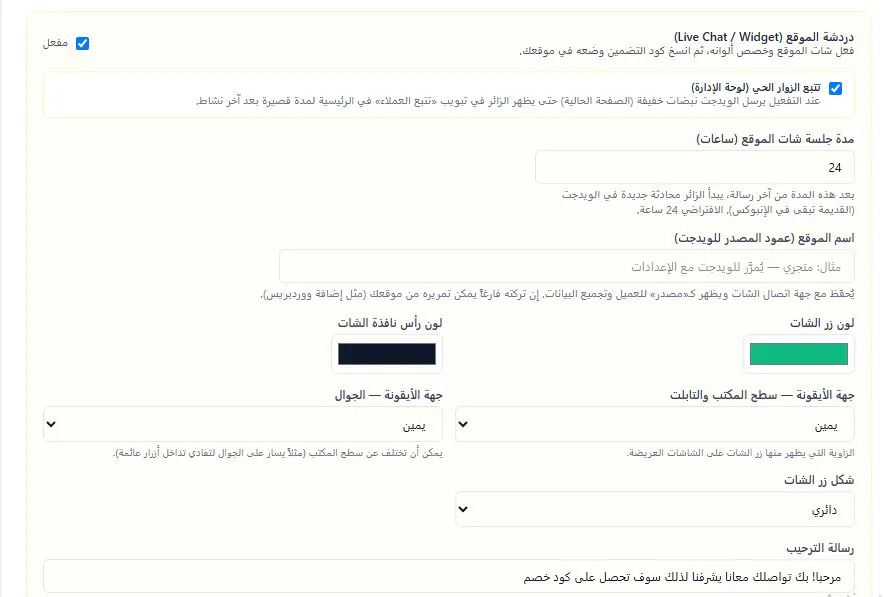
Colors · fonts · banner · sales rep
The website chat widget is not a generic gray box — it is fully customizable to match your store identity. Adjust every detail from the Wsali dashboard or WordPress settings.
Choose "Customize from WordPress" to override platform settings locally: icon position, button color, window header color, button shape (capsule + text), button text like "Chat with us", and font size. Useful when each site in the network has a different visual identity.
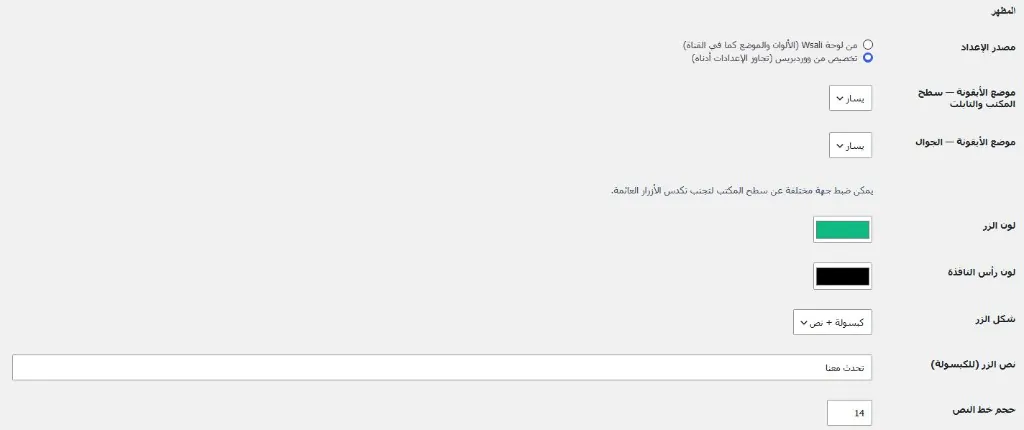
Set WhatsApp color in the menu, menu border color, and corner radius in pixels. Choose the interface font — such as Cairo from Google Fonts — applied to the chat window, "Chat with us" button, contact menu, and WhatsApp banner. Welcome and chat font sizes are finely adjustable.
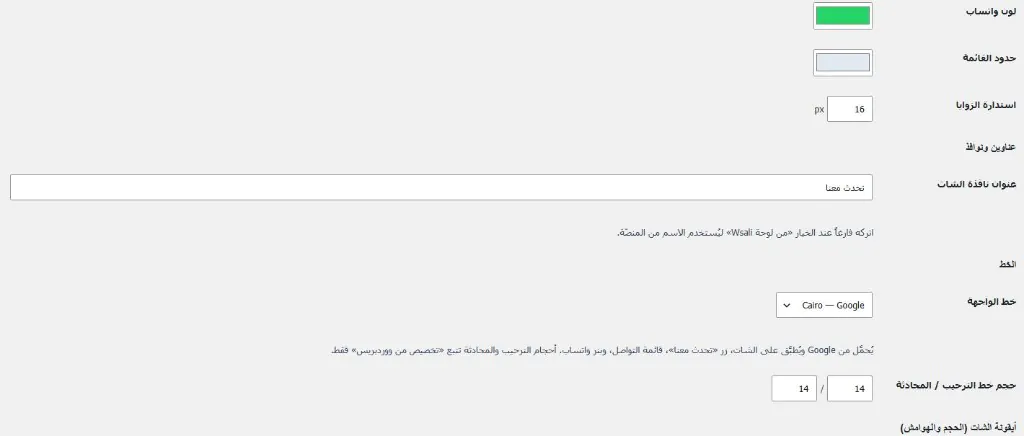
Control font family, welcome message size, chat message size, and compose box. Visually distinguish visitor messages (sent) from your replies to the customer (received) — with font color and bold option for each. An empty window title uses the company name from the platform dashboard.
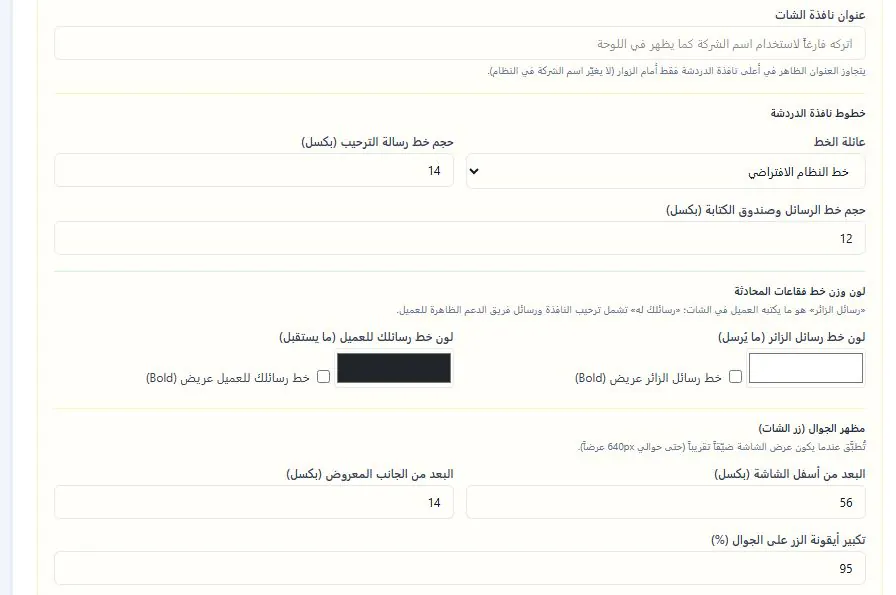
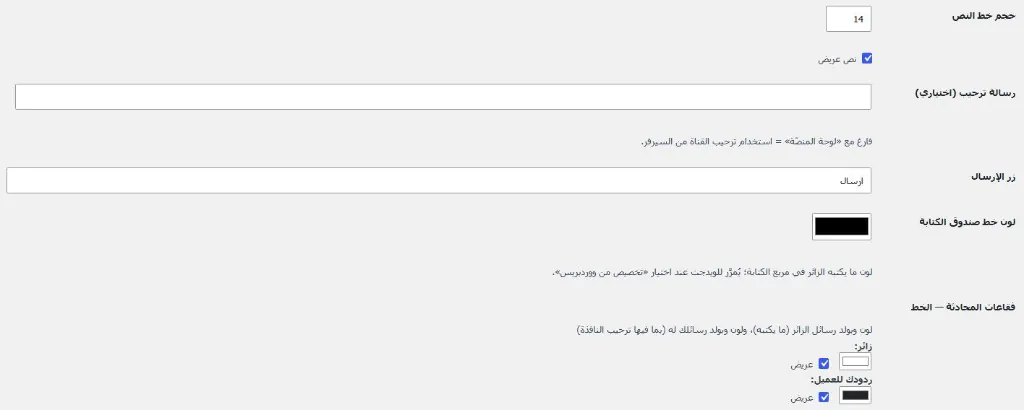
From WordPress: customize send button text, compose box font color, optional welcome message (or default from platform), and font size with bold option. These settings pass to the widget when local customization is selected — for an experience consistent with your site design.
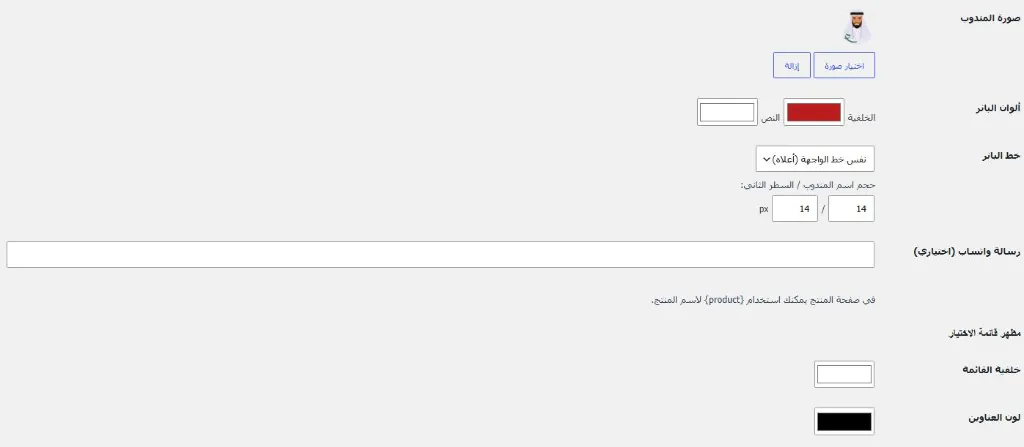
Upload the rep photo (or default avatar), set banner colors (background and text), banner font, and rep name and subtitle sizes. Add an optional WhatsApp message with the {product} variable for the product name on WooCommerce pages — a personalized message for each product.
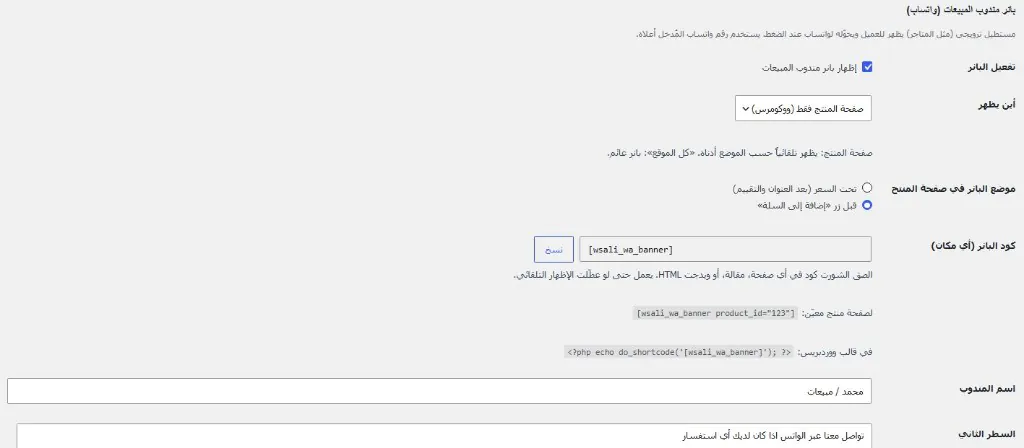
Enable the sales rep banner on the product page only or site-wide. Choose position: before "Add to cart" or below price. Use shortcode [wsali_wa_banner] on any page, or do_shortcode in PHP templates. Rep name and subtitle are fully customizable.
Set weekdays and business hours for the contact button — it hides automatically outside hours with an "Outside business hours" message. Customize "Website chat", "WhatsApp", and "Call" labels, and contact icon color. Choose floating button style: icons only or "Chat with us" text button.
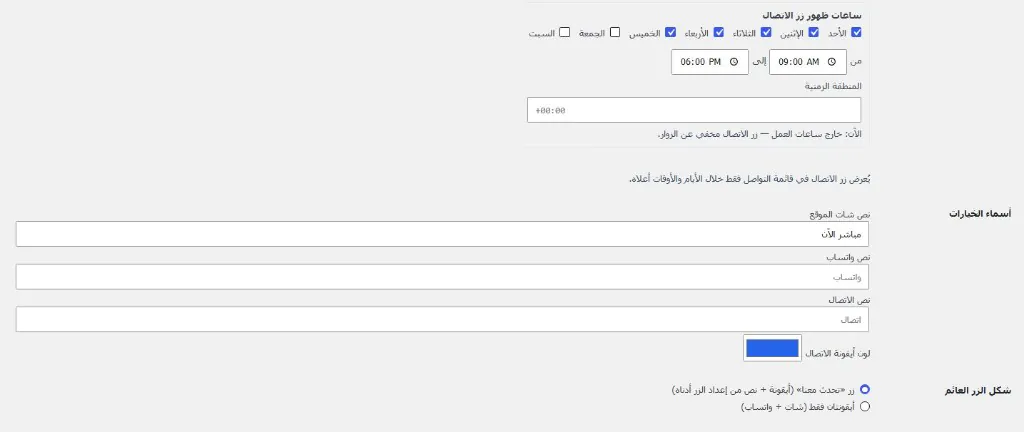
Turn silent visitors into active conversations
Do not wait for the customer to click chat. Set auto-open after a specified number of seconds, with a welcome message on window open — once per session or on every page per your choice.
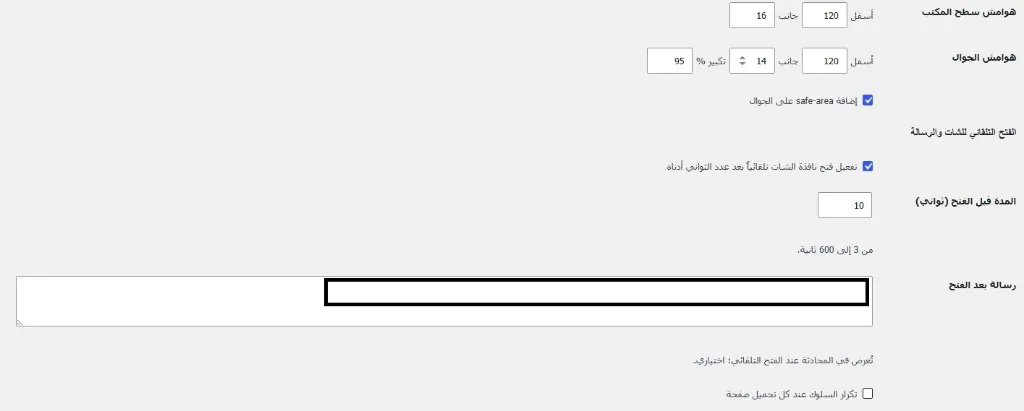
Set chat button size on mobile in pixels, and enable "Respect safe-area" to avoid overlap with the system bar or notch. Set distance from bottom and side, and icon scale percentage — for an ideal experience on all screen sizes.
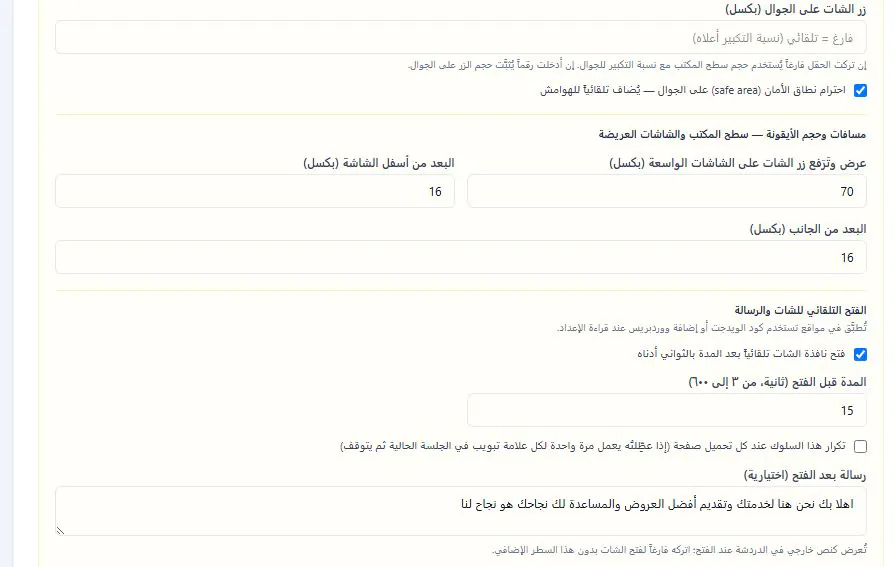
Enable "Auto-open chat window" and set the delay before opening (3 to 600 seconds). Write a post-open message that appears in the conversation instantly — such as: "Welcome, we are here to help". The "Repeat behavior on every page load" option controls showing the window once or on every page.
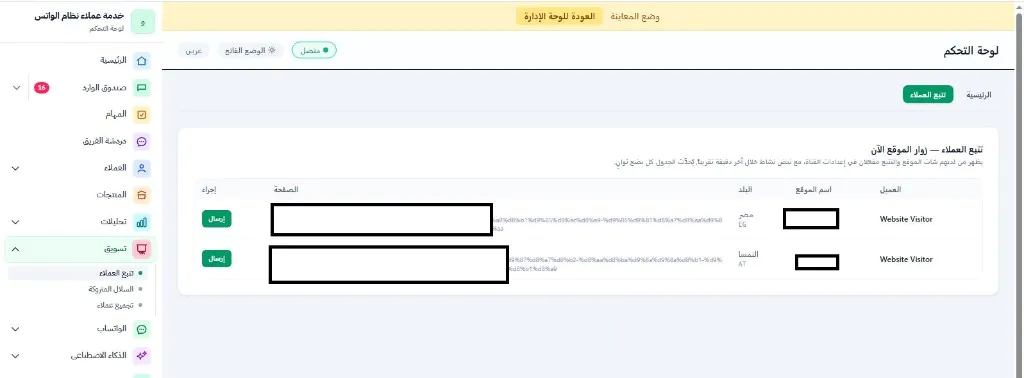
See your site visitors now — and message them directly
ميزة داخل شات بوت للمتاجر الإلكترونية من وصالي: ترى من يتصفح الآن عبر نظام دردشة مباشر للمواقع — الصفحة والبلد وIP — ثم تبدأ محادثة استباقية بنقرة.
From Marketing → Customer tracking, a list updates every few seconds with every visitor who has chat and tracking enabled. Columns: customer, site name, country with flag, current page (full URL), and "Send" button to start a direct conversation. Enable "Live visitor tracking" from chat settings to send pulses from the widget to the admin dashboard.
It is a chat widget embedded in your store that works as an e-commerce chatbot: AI replies, product recommendations, in-chat purchase help, visitor tracking, and customer data in a unified inbox with WhatsApp — a live website chat system built for sales, not messaging alone.
Yes. We provide ready plugins to activate live website chat on WordPress, Shopify, and OpenCart. For custom-built sites, one line of code before </body> shows the e-commerce chatbot within minutes.
Generic chat moves messages. An e-commerce chatbot shows products, understands your store policies, adds to cart, and escalates to an agent when needed — with live visitor tracking inside a live website chat system.
From channel settings, enable automatic bot replies. It trains on your site content, products, and instructions, so the e-commerce chatbot becomes an expert on your store — with the same bot logic used on WhatsApp.
Yes inside live website chat: enable live tracking to see page, country, and IP, and send a proactive message to any visitor before they leave — especially on product and checkout pages.
The script loads with defer so it does not slow the page. For WordPress, a local version of the e-commerce chatbot fits Core Web Vitals and PageSpeed improvements.
Yes. Use the company key on multiple sites with different source names, so all e-commerce chatbot conversations land in one inbox with each store labeled.
For complex requests, complaints, or high-value cases. The e-commerce chatbot covers repeats, and live website chat passes context to the agent so the customer does not re-explain from scratch.
Activate live website chat today: install the plugin or paste the code, connect the bot, track visitors, and capture customer data from the first conversation.